Medical image sharing
Medical image sharing, from your archive to the next clinician.
UnoPACS connects medical image sharing to your archive and patient records. Select a DICOM study, check the recipient and share it with a colleague or through a time-limited guest link.
- Share from the archive
- Browser access for recipients
- Time-limited guest links
A clearer handover
One study, from your team to theirs.
Check the study and the recipient before sending access.
Choose the study
Open the correct patient record and select the examination you intend to share. Confirm that it is the right study for the handover.
Choose the recipient
Share with a colleague on UnoPACS or send a time-limited guest link to someone outside the platform, according to your practice's access process.
Open in the browser
A guest recipient follows the link to access the study in the browser. Colleagues using UnoPACS can receive it within their own archive workflow.
Different recipients, one connected workflow.
The right handover depends on who receives the images and why. Set up the sharing process with those situations in mind.
Referring clinicians
Provide the images associated with a referral without preparing a separate disc for the recipient.
Patients
Provide browser access through a guest link. Explain the access period and who to contact if the patient needs help.
Colleagues and partner practices
Keep incoming and outgoing studies connected to the practice workflow. Review responsibilities and access settings before rollout.
Sender and recipient
See what happens on both sides of a shared study.
Archive sharing and a free image discussion solve different tasks. Choose the route that matches the handover: ongoing access to your practice workflow or a short session to look at selected images together.
Your team selects
In the Cloud PACS, check the patient and examination, then choose the intended recipient and the available access period. Keep responsibility for the handover with your team.
The recipient opens
The guest follows the complete invitation link to view the study in the browser. Explain how long access lasts and who can help; do not send links in a public channel.
Try a discussion first
The free viewer offers a separate, 35-minute shared session. Open files locally, review the images before the temporary upload, then invite someone to follow the same view. It is not a permanent archive.
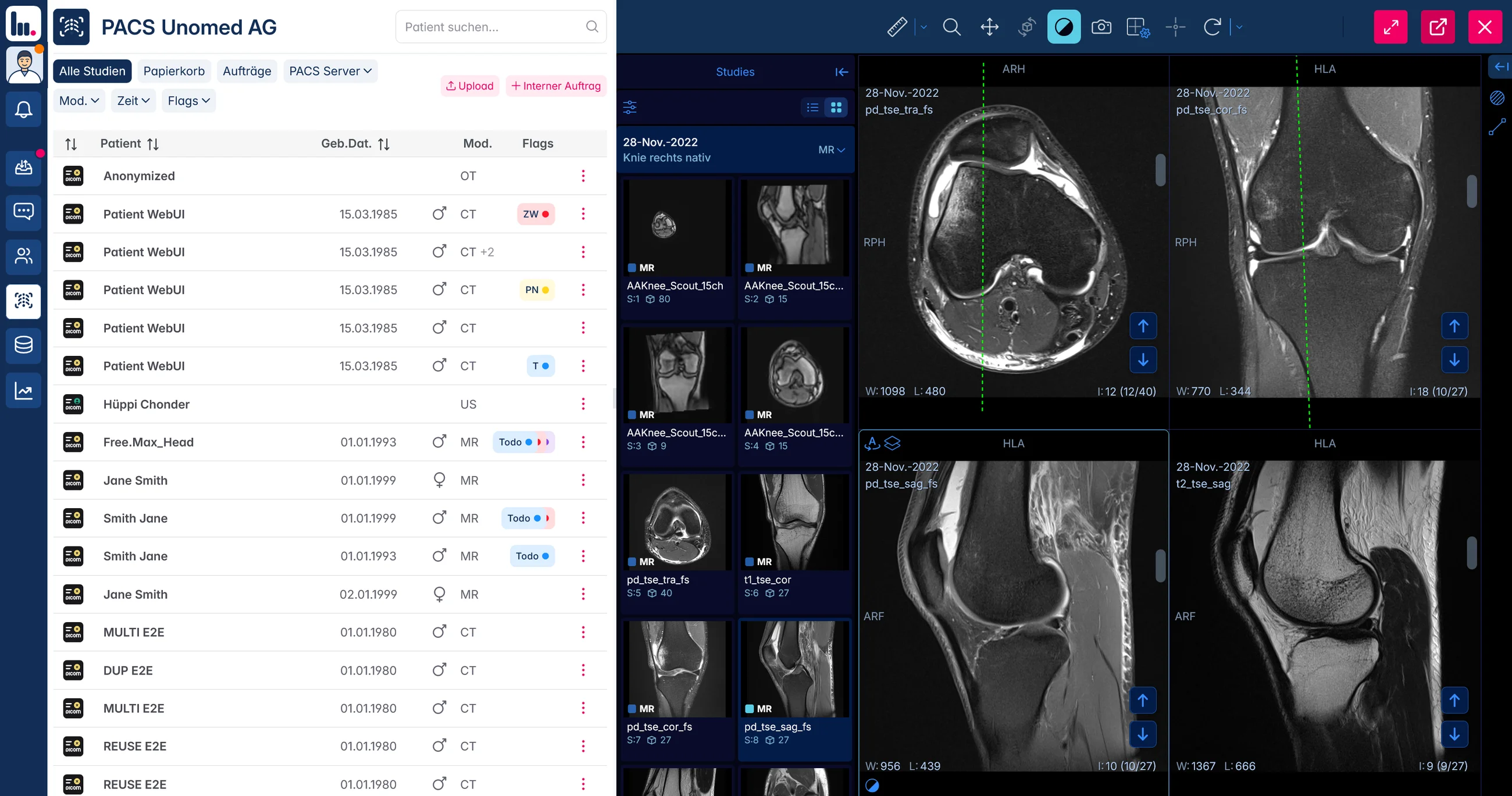
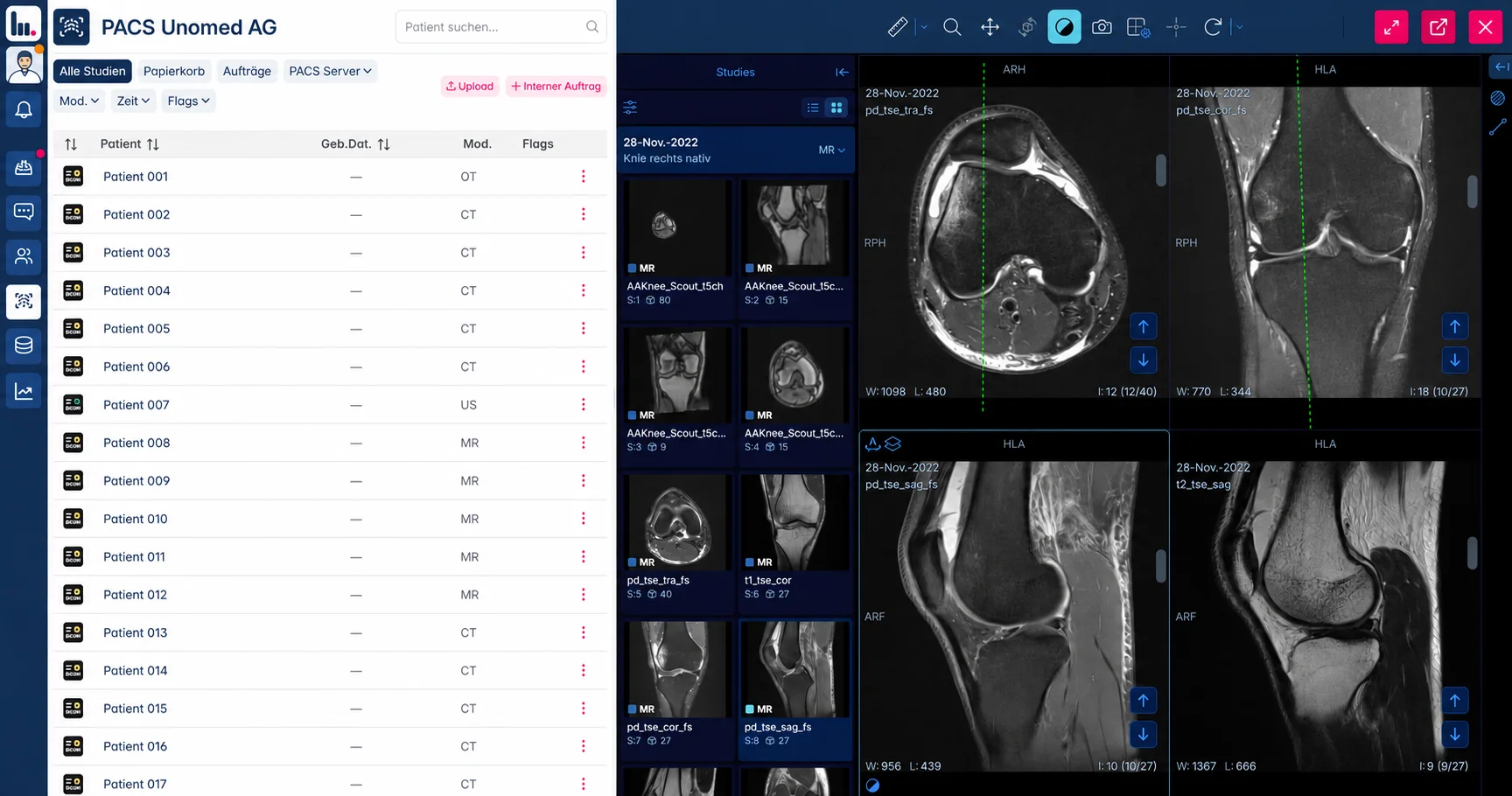
Actual UnoPACS archive and viewer, with neutral patient identifiers. The interface shown is in German; this is the Cloud PACS workspace, not a screenshot of the free-session invitation.
Questions
Before you share a study
Make access understandable for your team and the recipient.
Does the recipient need a UnoPACS account?
A recipient using a guest link can open the study without a UnoPACS account. Colleagues with an account can use the platform's archive workflow.
Does a guest link stay available indefinitely?
Guest links are time-limited. During the demo, review the available settings and access-management process for your intended recipients.
Can this replace every external portal?
That depends on the organisations involved and their accepted sharing methods. We review your partners and existing systems before agreeing the workflow.
Try the handover from both sides.
In the demo, follow a study from the sender's archive to the recipient's browser.